
The Fear
Interviews are high-stakes conversations. You cannot repeat them. A lost recording means lost evidence, lost scores, lost feedback. The candidate moved on. The panel forgot the details. The hiring decision degrades to memory and gut feeling.
We built the recording system to reduce that risk and to limit the damage if something goes wrong. Not with promises, but with architecture. Here is exactly how it works.
Three Ways to Record
AI Interview Analyzer supports three recording modes. All three lead to the same result: your interview enters the same secure workflow and ends as a transcript, an evaluation, and feedback.
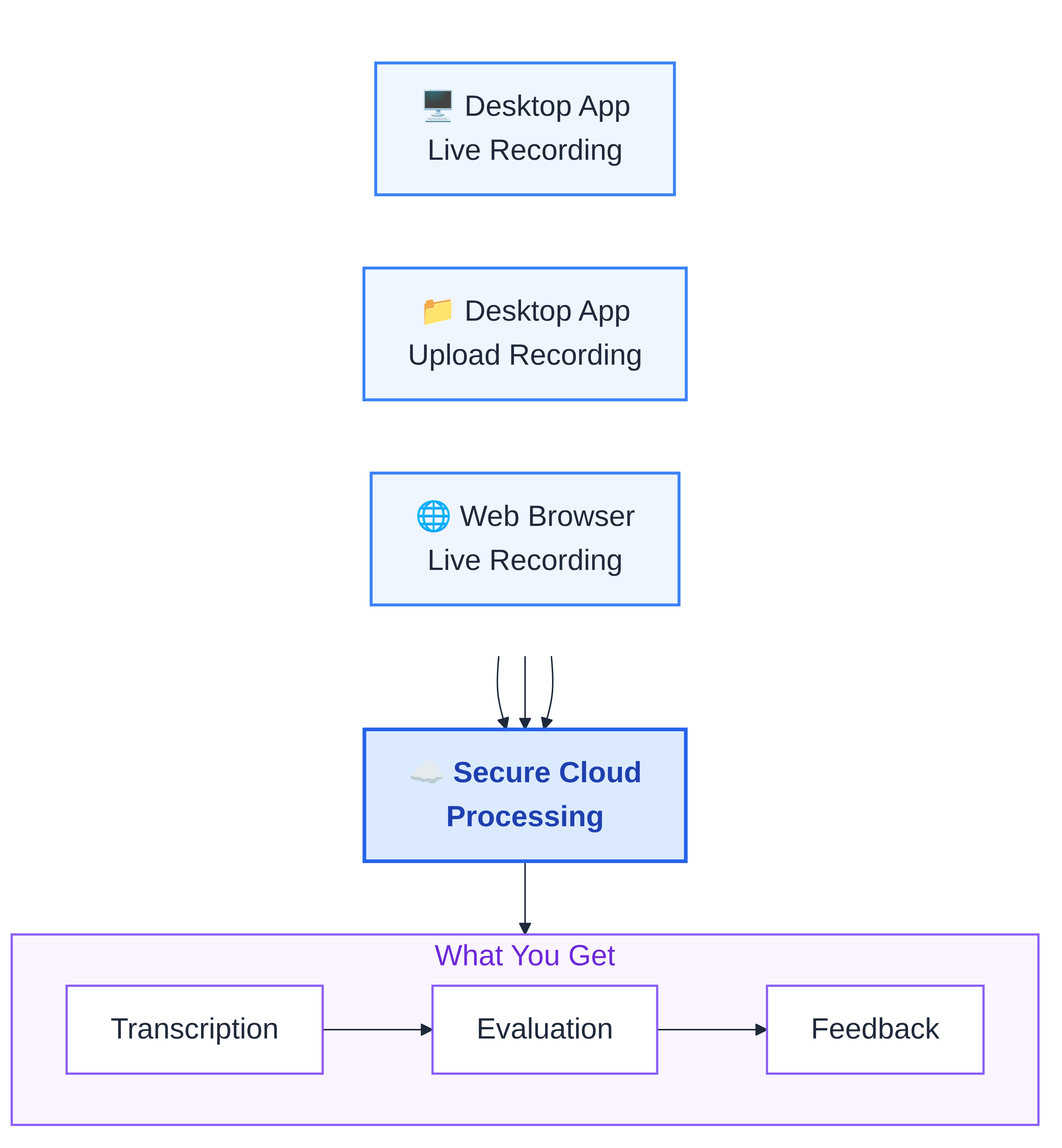
Desktop app, live recording. Open the app, start the interview, press Record. The app captures two audio streams simultaneously: your microphone (the interviewer) and system audio from the video call (the candidate speaking through Teams, Zoom, or Meet). Both streams merge into a single track in real time.
Desktop app, file upload. Already recorded the interview elsewhere? Upload the file. The system accepts MP3, WAV, MP4, AAC, and WMA, and converts supported formats automatically before analysis starts.
Web browser, live recording. No app needed. Open the portal in Chrome, Edge, or any Chromium browser. Click Record. The browser captures your microphone and the audio from the active tab or system audio (depending on your OS). Same dual-stream approach, same output quality.
Whichever mode you choose, the end result is the same. The recording goes through the same secure processing flow and becomes the same three outputs: transcript, evaluation, and feedback.
Two Audio Streams, One Track
During a live recording (desktop or web), the system captures two separate audio sources:
- Your microphone. The interviewer's voice, questions, follow-ups.
- System or tab audio. The candidate's voice coming through the video call.
These two streams merge into a single mono channel. Why mono, not stereo? Because the transcription service works with one channel. The interview is a conversation. Both voices need to be in the same stream for the AI to parse who said what.
The format is optimized for speech: 16 kHz sample rate, 16-bit depth, mono. Clear enough for accurate transcription, small enough to upload quickly even on slower connections.
The Thirty-Second Safety Net
This is the part that matters most.
The recording is not one large file that sits on your laptop until you press Stop. Every thirty seconds, a chunk of the recording uploads to Azure Storage. Automatically. In the background. No user action required.
A sixty-minute interview produces 120 chunks. Each chunk is an independent audio file stored on encrypted cloud storage. The moment a chunk uploads, it is safe.
If your laptop crashes, you lose at most thirty seconds. Not the whole interview. Not twenty minutes. The last thirty-second chunk that had not yet uploaded. Every chunk before it is already on Azure.
If your internet drops, the system retries. The next successful upload carries everything that was missed. Temporary network problems do not create permanent gaps.
If the app crashes and never sends a Stop signal, the server handles it. After the interview's scheduled time expires (plus a safety buffer), the server detects the orphaned recording, triggers the merge worker automatically, and your recording is assembled from the chunks that made it to storage.
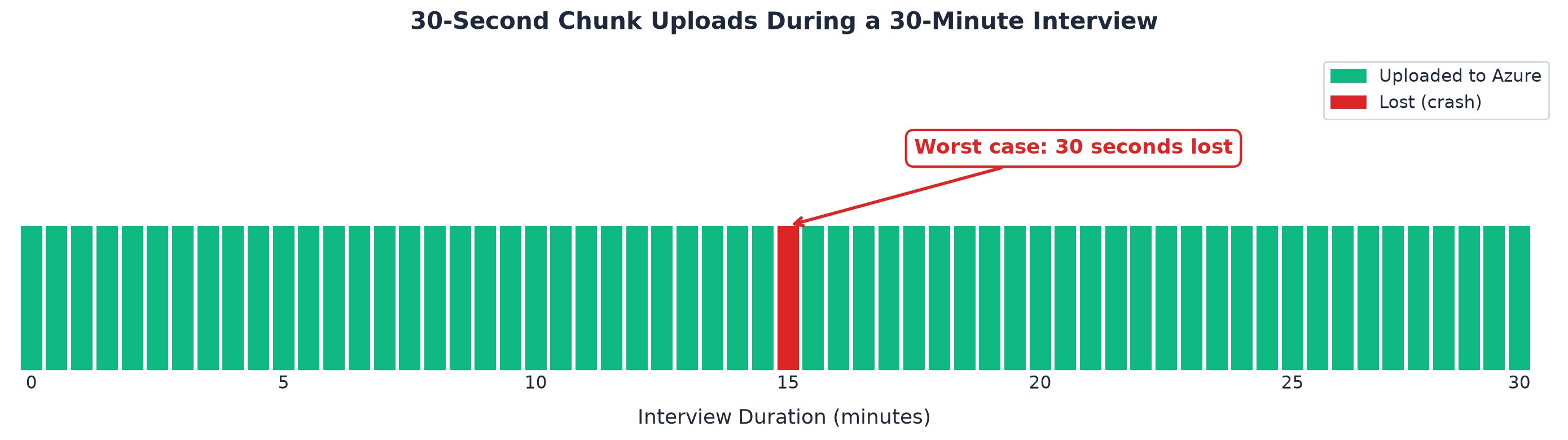
The worst realistic scenario: your laptop dies, your internet was also down for the last thirty seconds, and you have no observer to take over. You lose thirty seconds of a sixty-minute conversation. The other fifty-nine minutes and thirty seconds are on Azure.
From Chunks to Recording
When you stop the recording, a merge request goes to a dedicated processing queue. A merge worker picks up the job within seconds.
The worker downloads all chunks for the interview, sorts them by index, and assembles them into a single MP3 file. The final recording uploads back to Azure Storage and the AI pipeline starts automatically: transcription, Q&A parsing, evaluation, feedback drafts.
The merge worker handles edge cases that arise in real interviews:
- Mixed formats. If a recording started on the desktop (WAV chunks) and was taken over by a browser user (WebM chunks), the worker handles both formats in the same assembly.
- Duplicate chunks. If two recorders uploaded chunks with the same index (possible during a takeover), the worker keeps the most recent one.
- Format conversion. Uploaded files in MP4, AAC, or WMA get converted to normalized MP3 before processing.
You do not need to think about any of this. Press Record. Talk. Press Stop. The rest is automatic.
The Observer
Interviews are rarely a one-person job. A hiring manager wants to listen in. A junior interviewer shadows a senior colleague. A panel member joins from a different office.
That is what Observer mode is for.
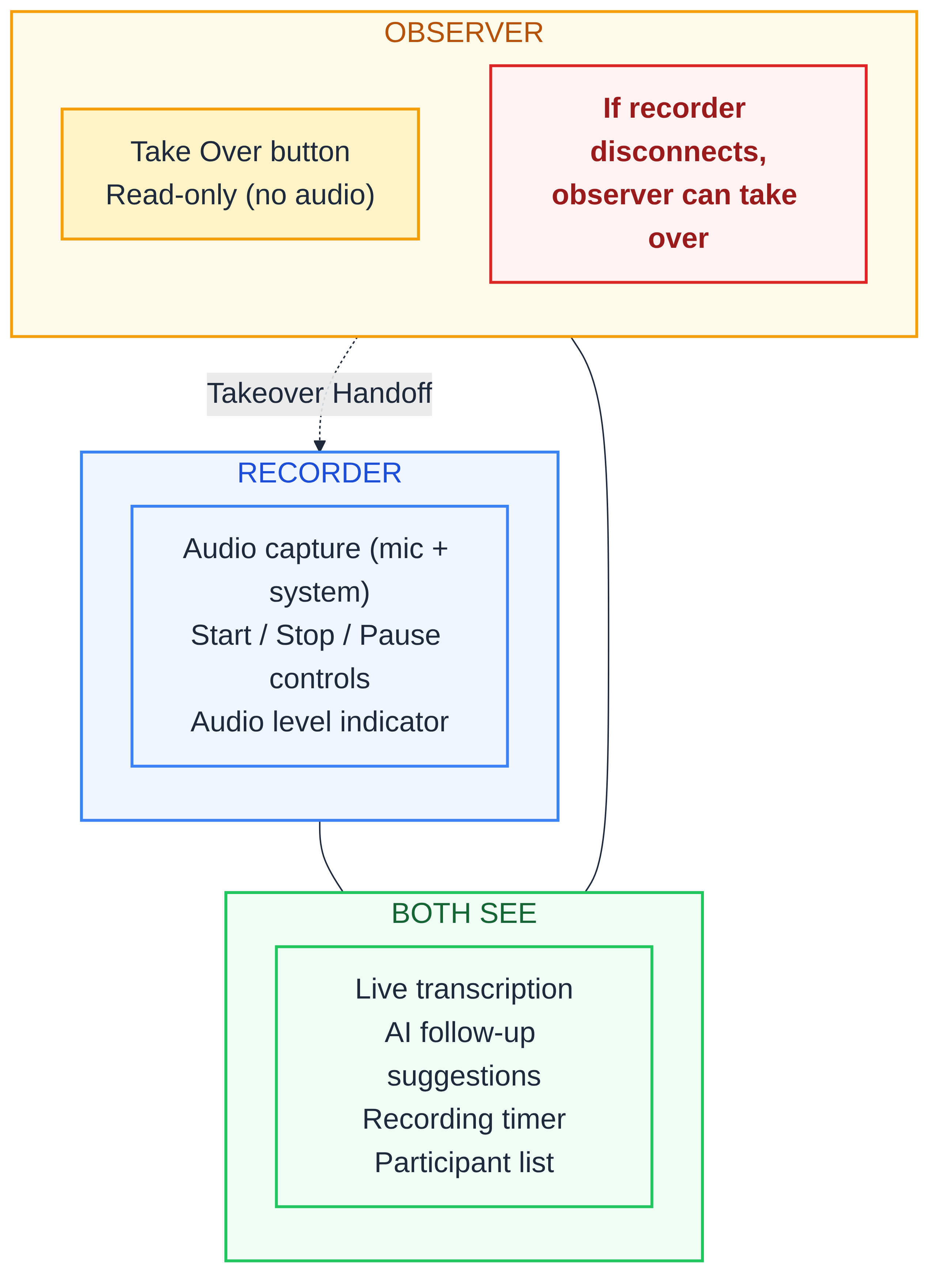
What observers see: The live transcription as it appears, word by word. AI-suggested follow-up questions updating in real time. The recording timer. The participant list with roles. Everything the recorder sees, minus the audio controls.
What observers can do: Take over the recording. If the original recorder disconnects (laptop crash, network failure, battery death), any observer can click Take Over. The system does not switch recorders automatically just because the connection dropped. The observer has to start the takeover. Once that happens, the handoff begins immediately. On desktop, the current recorder may see a confirmation step, but it is only an acknowledgment so the app can shut down cleanly and report the last uploaded chunk. It is not an approval step. If the recorder is already gone, the handoff completes without waiting for that acknowledgment.
What observers cannot do: Send audio. Start or stop the recording on their own. They watch. They take notes. And if needed, they rescue the recording.
Up to five observers can join a single interview session. All of them see the same live data. Any one of them can take over if the recorder drops.
Recording Modes at a Glance
Not every mode supports every feature. Here is the full comparison.
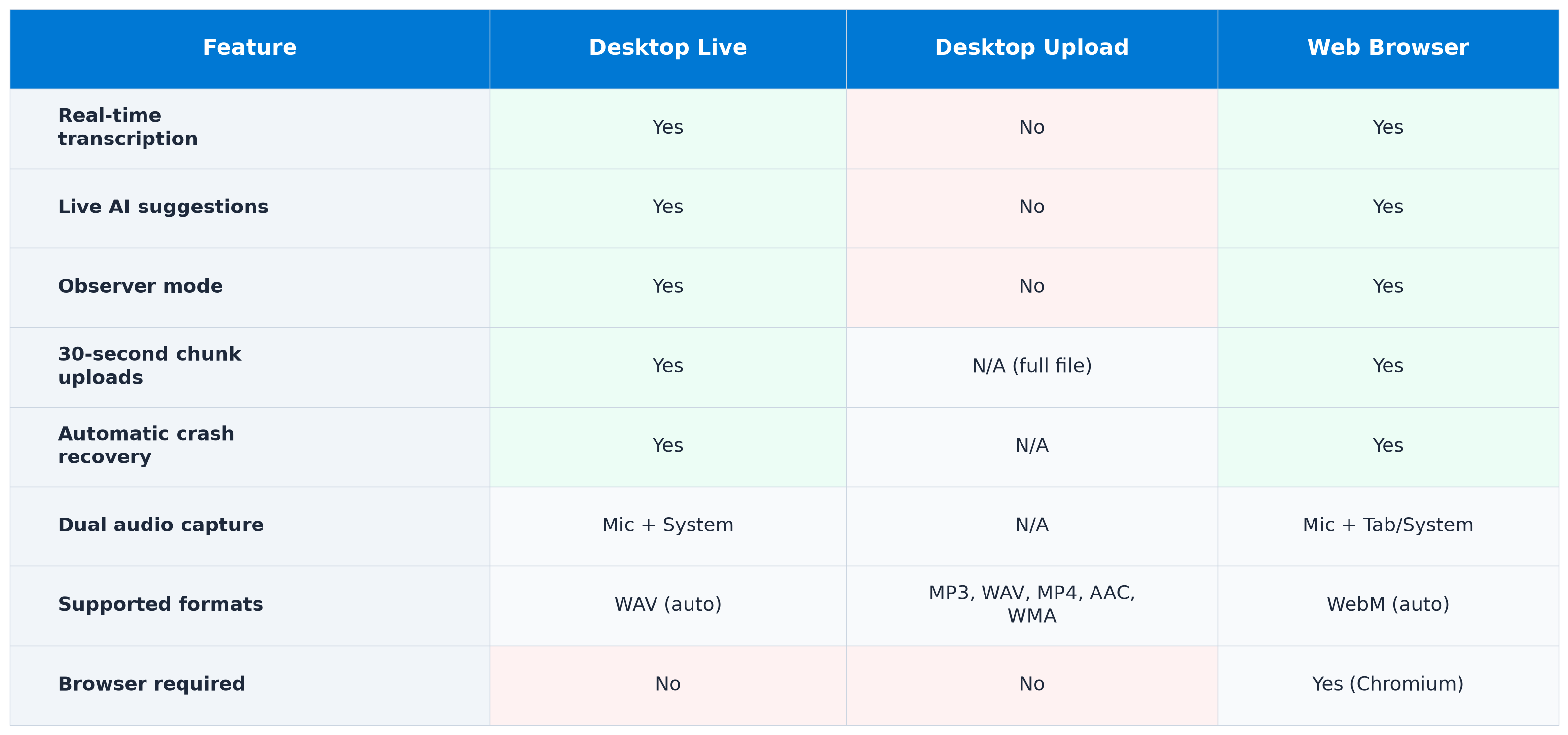
The key distinction: live recording modes (desktop and web) support real-time features like transcription, AI suggestions, and observer mode. File upload skips all of that because the recording already happened. The AI pipeline processes the uploaded file the same way, but without the live interaction.
After the Recording
Once the merge worker assembles the recording, the AI pipeline starts on its own. No button to press. No waiting.
- Transcription. Azure Speech converts audio to text in 24 EU languages.
- Parsing. The AI identifies speakers, splits the conversation into question-answer pairs.
- Evaluation. Each answer is scored against the criteria you defined, with quotes from the transcript as evidence.
- Feedback drafts. Two drafts: one from the recruiter (editable), one from the AI Coach (opt-in).
The original audio file stays on encrypted Azure Storage. Access is restricted to your organization. GDPR retention rules apply: recordings are deleted automatically based on your configured retention period after the recruitment closes.
The Design Principle
We built this recording system for teams where interviews are serious business. Where losing a recording is not a minor inconvenience but a failure that affects hiring quality, candidate experience, and legal defensibility.
Thirty-second chunks so a crash never costs more than half a minute. Automatic server-side recovery so orphaned recordings still get processed. Observer takeover so a disconnected recorder does not end the session. Encrypted cloud storage so the audio is safe from the moment it leaves your device.
The architecture was designed so you can focus on the conversation, not on whether it is being saved.